How to Configure a FortiGate Firewall: Initial Setup Step by Step
Zak
8 November 2026
→ Get Your FortiGate Configured Properly, Book a Free Consultation
FortiGates are one of the most common firewalls in UK small businesses, and one of the most commonly half-configured. The wizard gets you online in ten minutes, and that's usually where the setup stops.
This guide walks through configuring a FortiGate firewall properly for a small office, the way we'd build it for a client. It covers a desktop model like a 40F, 60F or 70G, but the same steps apply to bigger units.
The examples use FortiOS 7.4/7.6 CLI. You can do everything in the GUI too, but the CLI is quicker to show and easier to copy. Addresses and names are examples, so swap in your own.
Key Takeaways
- Update the firmware and lock down admin access before anything else
- Never allow HTTPS or SSH admin on the WAN interface
- Build separate VLANs for staff, guests, IoT and servers
- Write narrow policies between zones, and let the implicit deny handle the rest
- Turn on security profiles on internet-bound policies
- Use IPsec VPN with MFA for remote access, not port forwards
- Test with policy lookup and debug flow before you call it done
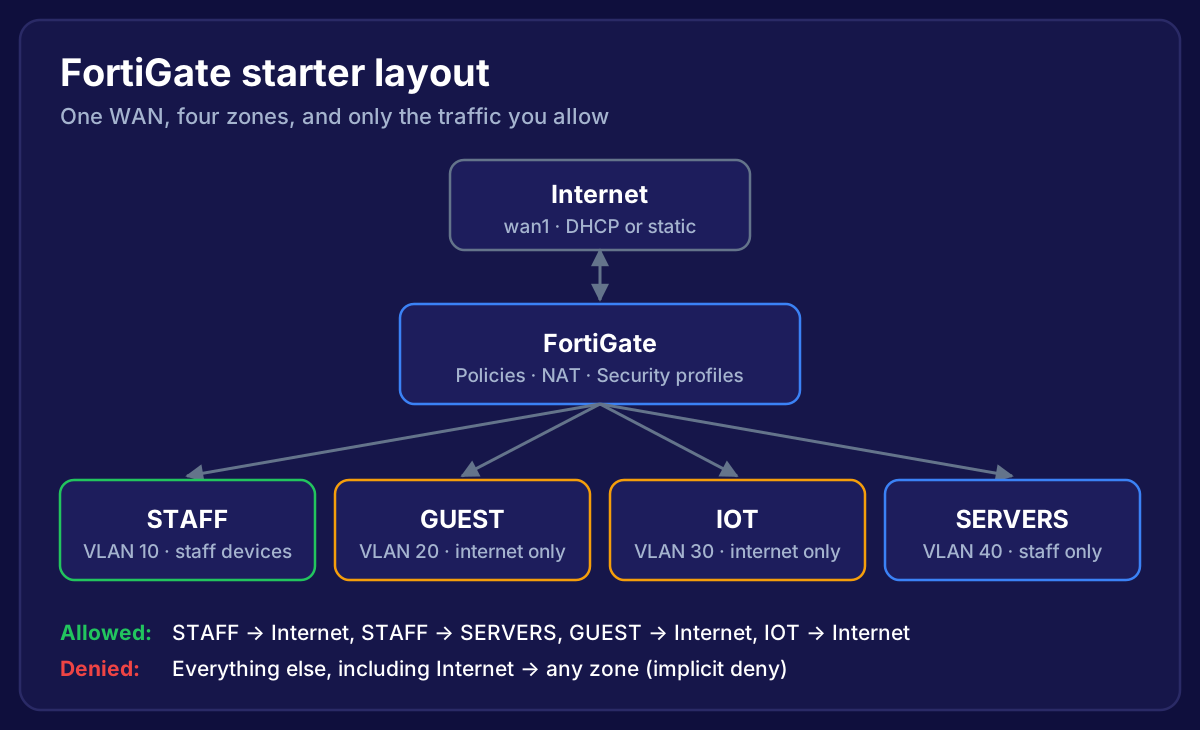 FortiGate starter layout: an internet connection on wan1, and four VLAN zones for staff, guest, IoT and servers, with only staff reaching the servers
Before You Start
Have these ready:
- The FortiGate, a laptop and an Ethernet cable
- Your internet details: DHCP from the ISP router, or a static IP, gateway and DNS
- Your plan: which VLANs you need, their IP ranges, and what each one should reach. Our configuring a firewall guide covers that planning step
- A FortiCare account to register the unit, so you get firmware and FortiGuard updates
Out of the box, a FortiGate's LAN ports are on 192.168.1.99. Plug your laptop into a LAN port, browse to https://192.168.1.99, and log in as admin with a blank password. You'll be forced to set a new one straight away.
Step 1: Update the Firmware
Check the version first:
get system status
Then upgrade through System > Firmware & Registration to Fortinet's recommended release for your model. Follow the supported upgrade path if you're several versions behind, rather than jumping straight to the latest.
FortiGates have had serious vulnerabilities in recent years, mostly in features exposed to the internet. Staying patched is the single most important thing you can do.
Step 2: Lock Down Admin Access
Set some sensible global defaults:
config system global
    set hostname "FGT-OFFICE"
    set admin-sport 8443
    set admintimeout 15
    set admin-lockout-threshold 3
    set admin-lockout-duration 300
end
Then create a named admin account for each person, restricted to your staff network, and stop using the built-in admin account:
config system admin
    edit "zak"
        set accprofile "super_admin"
        set password <a-strong-password>
        set trusthost1 192.168.10.0 255.255.255.0
    next
end
Trusted hosts mean the account can only log in from that range. Add two-factor authentication with FortiToken for every admin account. Once your named accounts work, disable the default admin account or give it a long random password and trusted hosts too.
Step 3: Configure the WAN
If your ISP router hands out an address, DHCP is the simplest:
config system interface
    edit "wan1"
        set mode dhcp
        set role wan
        set allowaccess ping
    next
end
Notice allowaccess is only ping. Never add https, http, ssh or fmgaccess to the WAN interface unless you have a clear reason and strict trusted hosts. An admin page on the internet is the most common FortiGate mistake we find.
With a static IP, set mode static, the IP and mask, then add a default route:
config router static
    edit 1
        set gateway 203.0.113.1
        set device "wan1"
    next
end
Step 4: Build the VLAN Zones
Create a VLAN for each zone on the port, or switch interface, that your network switch connects to. On many desktop models that's called internal or lan.
config system interface
    edit "STAFF"
        set vdom "root"
        set interface "internal"
        set vlanid 10
        set ip 192.168.10.1 255.255.255.0
        set allowaccess ping https ssh
        set role lan
        set device-identification enable
    next
    edit "GUEST"
        set vdom "root"
        set interface "internal"
        set vlanid 20
        set ip 192.168.20.1 255.255.255.0
        set allowaccess ping
        set role lan
    next
    edit "IOT"
        set vdom "root"
        set interface "internal"
        set vlanid 30
        set ip 192.168.30.1 255.255.255.0
        set allowaccess ping
        set role lan
    next
    edit "SERVERS"
        set vdom "root"
        set interface "internal"
        set vlanid 40
        set ip 192.168.40.1 255.255.255.0
        set allowaccess ping
        set role lan
    next
end
Only the STAFF VLAN allows admin access, and your trusted hosts narrow it further. Your switch ports and WiFi SSIDs then need tagging into the matching VLANs.
Step 5: Add DHCP for Each Zone
Each VLAN needs a DHCP server so devices get an address. Here's the staff one. Repeat it for the others with their own ranges:
config system dhcp server
    edit 1
        set interface "STAFF"
        set default-gateway 192.168.10.1
        set netmask 255.255.255.0
        set dns-service default
        config ip-range
            edit 1
                set start-ip 192.168.10.100
                set end-ip 192.168.10.250
            next
        end
    next
end
Servers, printers and cameras should have fixed addresses, either set on the device or reserved in DHCP.
Step 6: Create Address Objects
Name the things you'll write rules about, so your policies are readable:
config firewall address
    edit "FILE-SERVER"
        set subnet 192.168.40.10 255.255.255.255
    next
    edit "NVR"
        set subnet 192.168.40.20 255.255.255.255
    next
end
Step 7: Write the Firewall Policies
FortiGate policies are checked top to bottom, and anything that doesn't match a policy is dropped by the implicit deny at the end. So you only write what should be allowed.
Staff to the internet, with security profiles:
config firewall policy
    edit 1
        set name "STAFF-to-Internet"
        set srcintf "STAFF"
        set dstintf "wan1"
        set srcaddr "all"
        set dstaddr "all"
        set action accept
        set schedule "always"
        set service "HTTP" "HTTPS" "DNS"
        set utm-status enable
        set ssl-ssh-profile "certificate-inspection"
        set av-profile "default"
        set webfilter-profile "default"
        set dnsfilter-profile "default"
        set ips-sensor "default"
        set application-list "default"
        set logtraffic all
        set nat enable
    next
end
Staff to the file server only:
config firewall policy
    edit 2
        set name "STAFF-to-FileServer"
        set srcintf "STAFF"
        set dstintf "SERVERS"
        set srcaddr "all"
        set dstaddr "FILE-SERVER"
        set action accept
        set schedule "always"
        set service "SMB"
        set logtraffic all
    next
end
Guests and IoT get internet only. Copy policy 1 with srcintf "GUEST" or "IOT", and use a stricter web filter if you like. Because there's no policy from GUEST or IOT to STAFF or SERVERS, the implicit deny blocks that traffic for you.
Restricting staff to web and DNS services is a good start. If something legitimate breaks, check the logs and add the exact service it needs, rather than switching to ALL.
To log what the implicit deny drops:
config log setting
    set fwpolicy-implicit-log enable
end
Step 8: Remote Access With a VPN
If staff work from home, give them an IPsec dial-up VPN with FortiClient, with MFA on every login, and a policy that only lets VPN users reach what they need.
Fortinet is moving away from SSL VPN. Newer FortiOS releases have dropped SSL VPN tunnel mode, and some smaller models have lost SSL VPN altogether, so build new remote access on IPsec.
Avoid port forwards (virtual IPs) to internal devices, especially remote desktop. If something must be published, give it its own zone and a narrow policy.
Step 9: Logging, Backups and Updates
- Logging: send logs to FortiGate Cloud or FortiAnalyzer, so they're kept off the box. Set this under Log & Report > Log Settings
- Backups: back up the config under the admin menu, Configuration > Backup, and store an encrypted copy safely. Do it again after every change
- Updates: make sure FortiGuard definitions are updating, and plan firmware updates every quarter
Step 10: Test It
Don't trust it until you've tested it. Policy Lookup in Policy & Objects > Firewall Policy tells you which policy a given connection would match.
To see exactly what the FortiGate does with live traffic, use debug flow. For example, to trace a ping to 8.8.8.8:
diagnose debug flow filter addr 8.8.8.8
diagnose debug flow show function-name enable
diagnose debug flow trace start 10
diagnose debug enable
Run the ping, read the output, then switch it off:
diagnose debug disable
diagnose debug reset
The output shows the policy ID that matched, or Denied by forward policy check if it was blocked. Then test each zone in turn:
- From guest WiFi, try to reach a staff laptop and the file server. Both should fail
- From an IoT device, confirm the internet works and nothing internal does
- From outside, scan your public IP and confirm nothing answers but the VPN
Common FortiGate Mistakes
- HTTPS admin on wan1, often left over from a remote setup
- One big "LAN to WAN, ALL, accept" policy and no VLANs
- Security profiles created but not applied to any policy
- Virtual IPs forwarding RDP to an internal PC
- Firmware years out of date, often because nobody owns the box
We list more of these, for any brand, in firewall configuration mistakes. If you're running several sites, our FortiGate SD-WAN over MPLS guide covers the next step up.
Frequently Asked Questions
What is the default FortiGate IP address and login?
LAN ports default to 192.168.1.99. The username is admin with a blank password, and you're asked to set a new one at first login.
Should I use the CLI or the GUI?
Either works. The GUI is easier to learn. The CLI is faster, easier to document, and shows you exactly what's configured.
Do I need a FortiGuard licence?
To use web filtering, IPS, antivirus and application control properly, yes. Without it, the FortiGate is a basic firewall and VPN.
How do I stop guests reaching my office network?
Put guests on their own VLAN and SSID, and don't create any policy from that VLAN to your internal ones. The implicit deny does the rest.
Is SSL VPN still safe to use on a FortiGate?
Fortinet is phasing it out in favour of IPsec VPN, and SSL VPN has been a common target for attacks. For new setups, use IPsec with FortiClient and MFA.
Want your FortiGate set up properly, first time?
We configure and review FortiGates for businesses across the South West: admin lockdown, VLANs, policies, security profiles, VPN and logging, all documented and tested before we hand it over.
→ Book Your Free FortiGate Consultation
Related Reading
Keep Reading
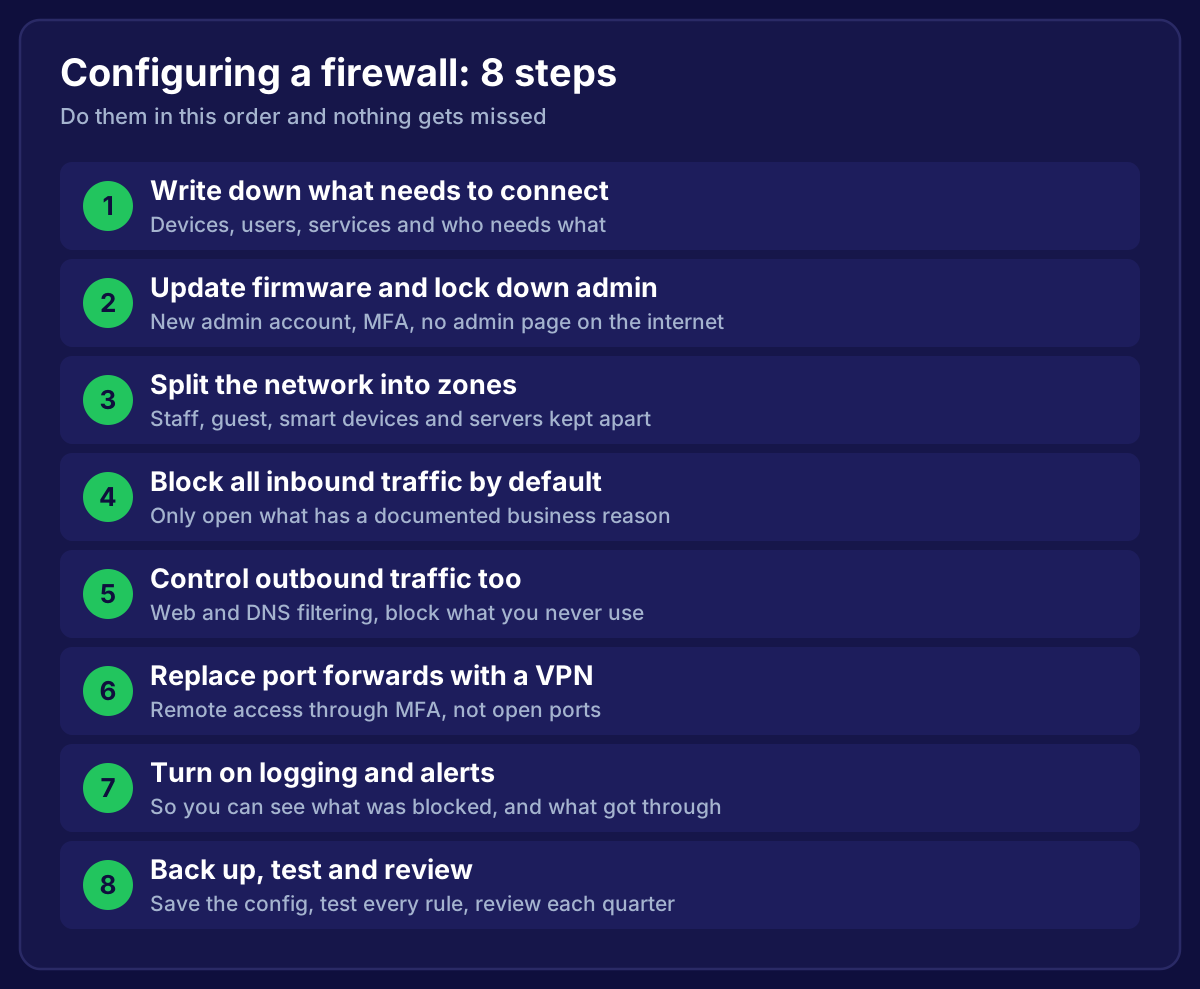
Configuring a Firewall: A Step-by-Step Guide for Small Businesses
9 min read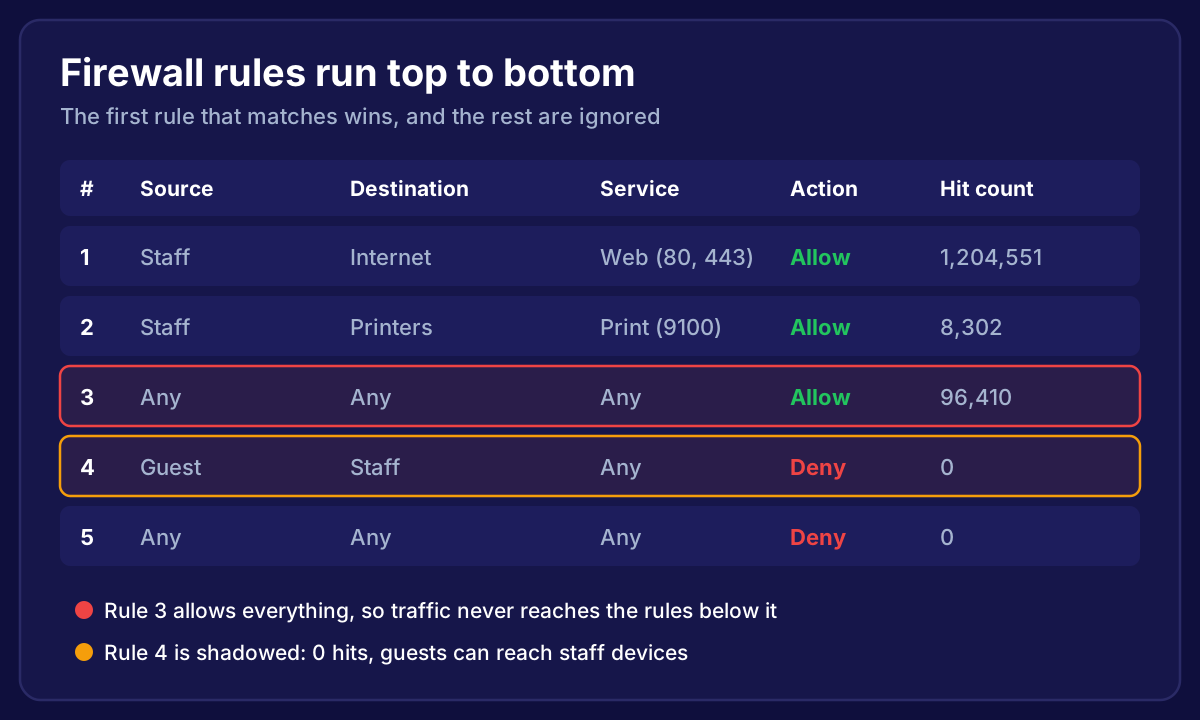
Firewall Rules Best Practices: How to Write Rules That Don't Leave Gaps
8 min read