How to Configure the Firewall on Your Home Router (UK Guide)
Zak
8 November 2026
→ Get Your Home Network Set Up Properly, Fixed Price
Your broadband router already has a firewall. It's the reason strangers on the internet can't just browse the laptops and phones in your house.
The catch is that a few settings, often switched on by default or by an app you installed years ago, quietly open doors in it. You don't need to be technical to close them. It's one settings page and about 15 minutes.
Key Takeaways
- Your router's firewall is usually on by default, but it's worth checking
- Change the router's admin password, not just the WiFi password
- Keep the router's software up to date
- Turn off remote management and WPS
- Turn off UPnP if nothing you use needs it
- Delete old port forwards
- Put visitors and smart devices on the guest network
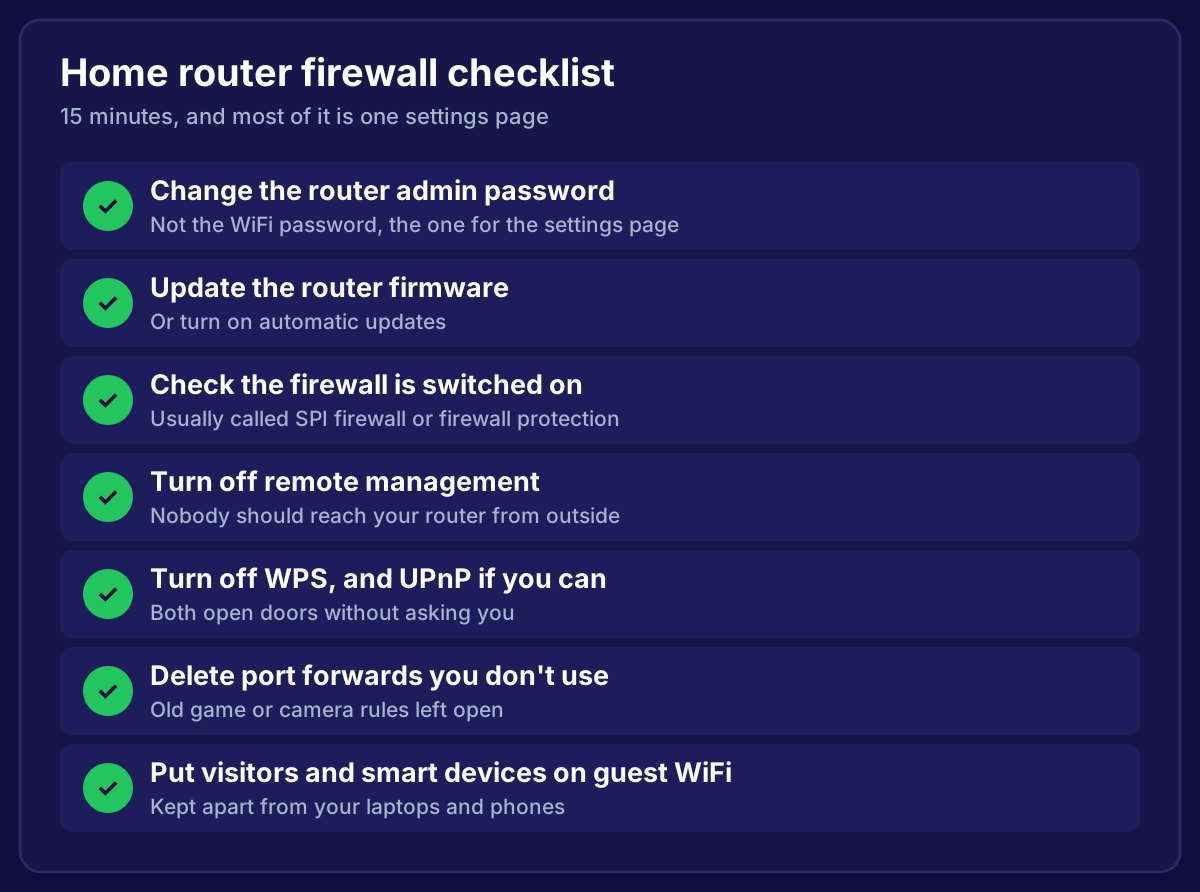 Home router firewall checklist: change the admin password, update firmware, check the firewall is on, turn off remote management, turn off WPS and UPnP, delete unused port forwards, and use guest WiFi for visitors and smart devices
Step 1: Log In to Your Router
Open a web browser on a device connected to your WiFi and type your router's address into the address bar. Common UK addresses:
| Router | Usual address |
|---|---|
| BT Smart Hub and EE | 192.168.1.254 |
| Sky Hub | 192.168.0.1 |
| Virgin Media Hub | 192.168.0.1 |
| TalkTalk | 192.168.1.1 |
If none work, the address and admin password are usually printed on a sticker on the router. Some providers also let you manage settings through their app.
Step 2: Change the Router Admin Password
This is the password for the router's settings page, not your WiFi password. If someone gets it, they can change everything else on this list.
Pick something long and unique, and keep it somewhere safe, such as a password manager. UK law now bans new routers and smart devices from shipping with the same default password on every unit, but older routers can still have a weak one.
Step 3: Update the Router's Software
Router software (firmware) gets security fixes like any other software. Most ISP routers update themselves, but it's worth checking for an update or firmware option in the settings.
If your router is very old and no longer gets updates, it's time to ask your provider for a new one.
Step 4: Check the Firewall Is On
Look for a section called Firewall, Security or Advanced settings. You're looking for something like SPI firewall or firewall protection, and it should be on.
If there's a choice of levels, the default setting is right for most homes. The strictest levels can break games consoles and video calls.
Step 5: Turn Off Remote Management
Remote management lets someone log in to your router's settings from outside your home. Unless your provider needs it for support, turn it off. Nobody should be able to reach your router's settings from the internet.
Step 6: Turn Off WPS, and UPnP If You Can
WPS is the button that connects devices without typing the WiFi password. It has known weaknesses, and you can always type the password instead. Turn it off.
UPnP lets devices in your home open ports in the firewall by themselves, without asking you. It's convenient for games consoles, but it also means a compromised smart device can open a door for itself.
- If you don't game online, turn UPnP off
- If you do, try turning it off and see if anything breaks. If your console reports a strict NAT type, you may need to turn it back on, or set up one specific port forward instead
Step 7: Delete Port Forwards You Don't Use
Port forwarding opens a direct path from the internet to one device in your home. It's often set up for a CCTV recorder, a game server or a home server, then forgotten.
Look for port forwarding, virtual server or NAT. Delete anything you don't recognise or no longer use. For remote CCTV viewing, the manufacturer's app is usually a safer route than an open port.
Step 8: Put Visitors and Smart Devices on Guest WiFi
Most routers have a guest network. Devices on it can use the internet but can't see your laptops and phones.
Use it for:
- Visitors' phones and laptops
- Smart plugs, bulbs, cameras and doorbells
- Smart TVs and streaming sticks
Cheap smart devices are often the weakest link in a home network. Keeping them separate means that if one is compromised, it can't reach anything that matters. We explain more in our smart home WiFi guide.
Some guest networks have device limits, or isolate devices from each other, which can stop casting to a TV. If that happens, keep the TV on your main network and move the rest.
Step 9: Check the Firewall on Your Laptops Too
Your router protects the whole house, but your laptop's own firewall protects it when you're on café or hotel WiFi.
- Windows: Windows Security, then Firewall & network protection. Each network type should say the firewall is on
- Mac: System Settings, then Network, then Firewall. Turn it on
When a Home Router Isn't Enough
ISP routers are fine for most homes. They start to struggle when you want:
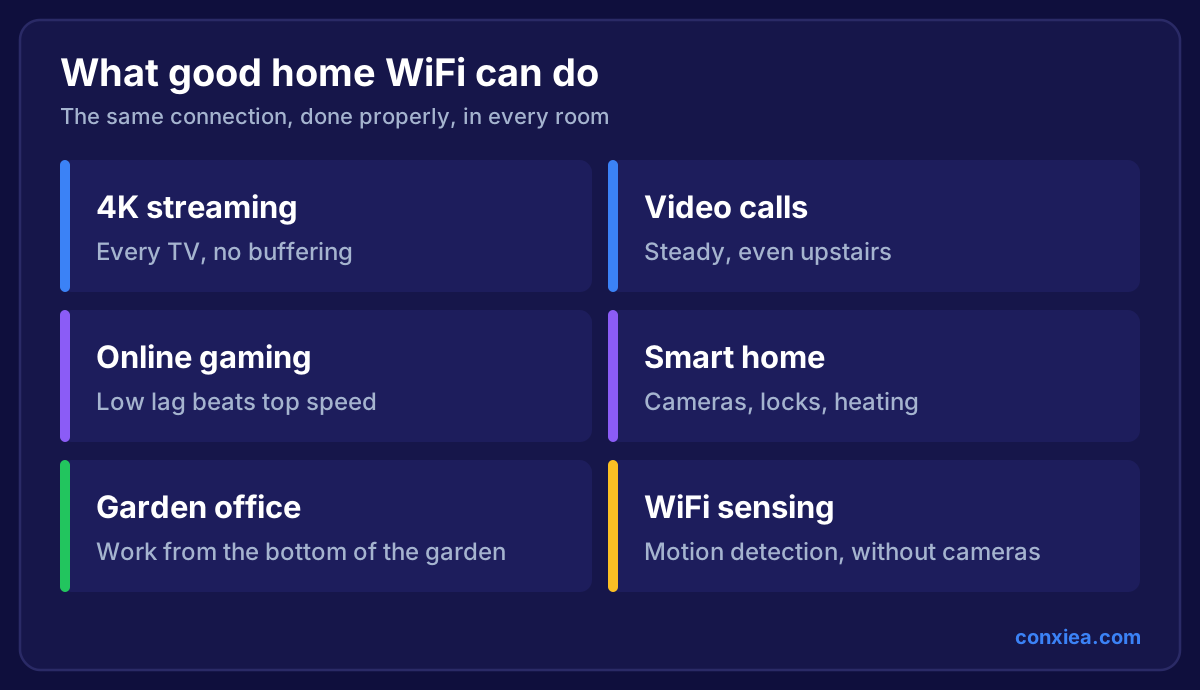
- WiFi that reaches every room, the garden office and the loft
- Proper separate networks for work, family, kids and smart devices
- Parental controls that actually work across every device
- Better control over what's allowed in and out
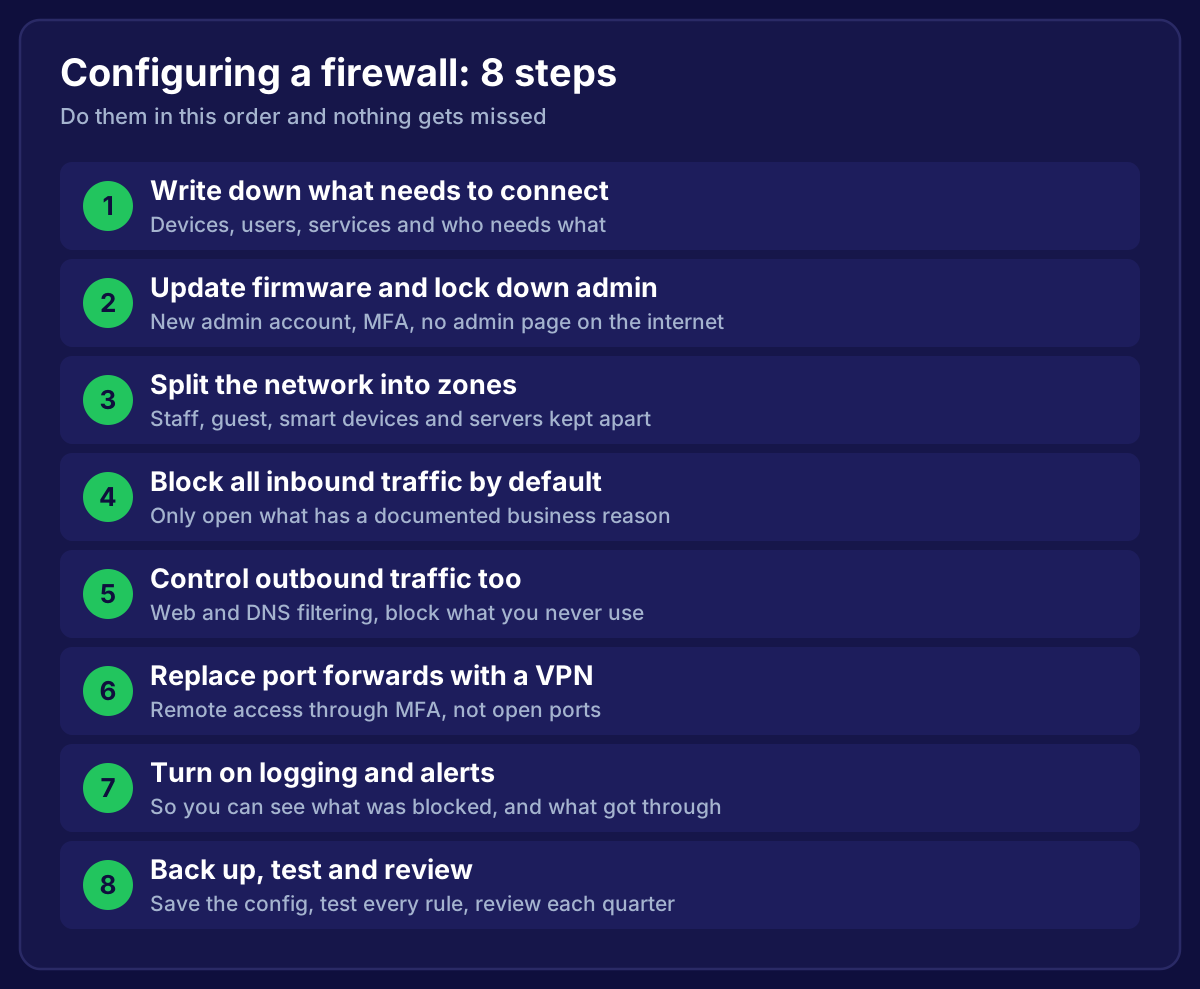
That's where a proper home network, with your own router and wired access points, makes a real difference. It's the same idea businesses use, just scaled down for a house. If you're curious how businesses do it, see our guide to configuring a firewall.
Frequently Asked Questions
Does my home router have a firewall?
Yes. Almost every UK broadband router has a firewall that's on by default and blocks unrequested connections from the internet.
Should I turn off UPnP?
If you don't game online or host anything at home, yes. If you do, try it off first and only turn it back on if something stops working.
Is guest WiFi safe for smart devices?
It's safer than your main network, because it keeps them apart from your laptops and phones. Just check the devices still work as you expect.
Will changing these settings slow down my WiFi?
No. None of these steps affect your speed. If your WiFi is slow, it's usually down to coverage, not the firewall. Our guide to getting WiFi in every room covers that.
What if I lock myself out of the router?
Most routers have a reset button that restores the factory settings, including the original password on the sticker. You'll need to set up your WiFi again afterwards.
Want your home network secure and reaching every room?
We set up home networks with proper guest and smart device networks, wired access points, and WiFi that works everywhere. One fixed price, cables kept tidy, and if it isn't fixed, you don't pay. We cover homes across the South West.
→ Get A Home WiFi Installation
Or talk to a local home WiFi installer.